On a modern Windows PC, though, switching it off is one of the few tweaks that can make your drive slower.
That name is misleading: on an SSD, the tool mostly does something else entirely. Hard drives get defragmented, but SSDs get trimmed, and Windows runs that job weekly by default. Turn the schedule off, and you're switching off the maintenance your SSD depends on.
The advice made sense when Windows treated every drive the same
Blame Windows 7 and a few old guides
 Credit: Sagar Naresh/MakeUseOf
A traditional defrag hails back to hard drives with moving parts and shuffles file fragments around so the hard drive's read head moves less. SSDs don't have that read head, so defragmenting them doesn't do anything for them, but it does mean you're writing to the drive more often. That's something that you want to avoid on an SSD, as more writes means a shorter life.
Microsoft changed the way it treated SSDs back in 2009, excluding drives that identify as SSDs from scheduled defrag sessions, as random reads were already fast enough. Unfortunately, early SSDs could end up not identiying themselves correctly, so Windows 7 also ran a random-read speed test as a fallback. Users who didn't trust the detection system turned the whole schedule off by hand, and now we have it as a standard advice point.
Many guides end up telling readers to uncheck Run on a schedule in the defragmenter. Some SSD tweak guides can still say to uncheck the schedule, and some updated this year still list "disable defragmentation" as an SSD tweak, and other forum users still recommend disabling automatic defrag on NVMe drives or even going as far as switching off Windows' entire maintenance routine.
This was likely a valid solution for Windows 7 with a mis-detected drive, but for Windows 10 and 11, the schedule doesn't run a weekly defrag on SSDs, so it ends up being bad for your system to disable.
On an SSD, "Optimize" mostly means TRIM
TRIM tells your SSD which blocks don't have any valid data, so it can erase them before they're needed. TRIM can also reduce wear by avoiding extra merge operations on the drive. That's generally not what people think of when they disable the schedule. Windows already sends TRIM commands when you delete files.
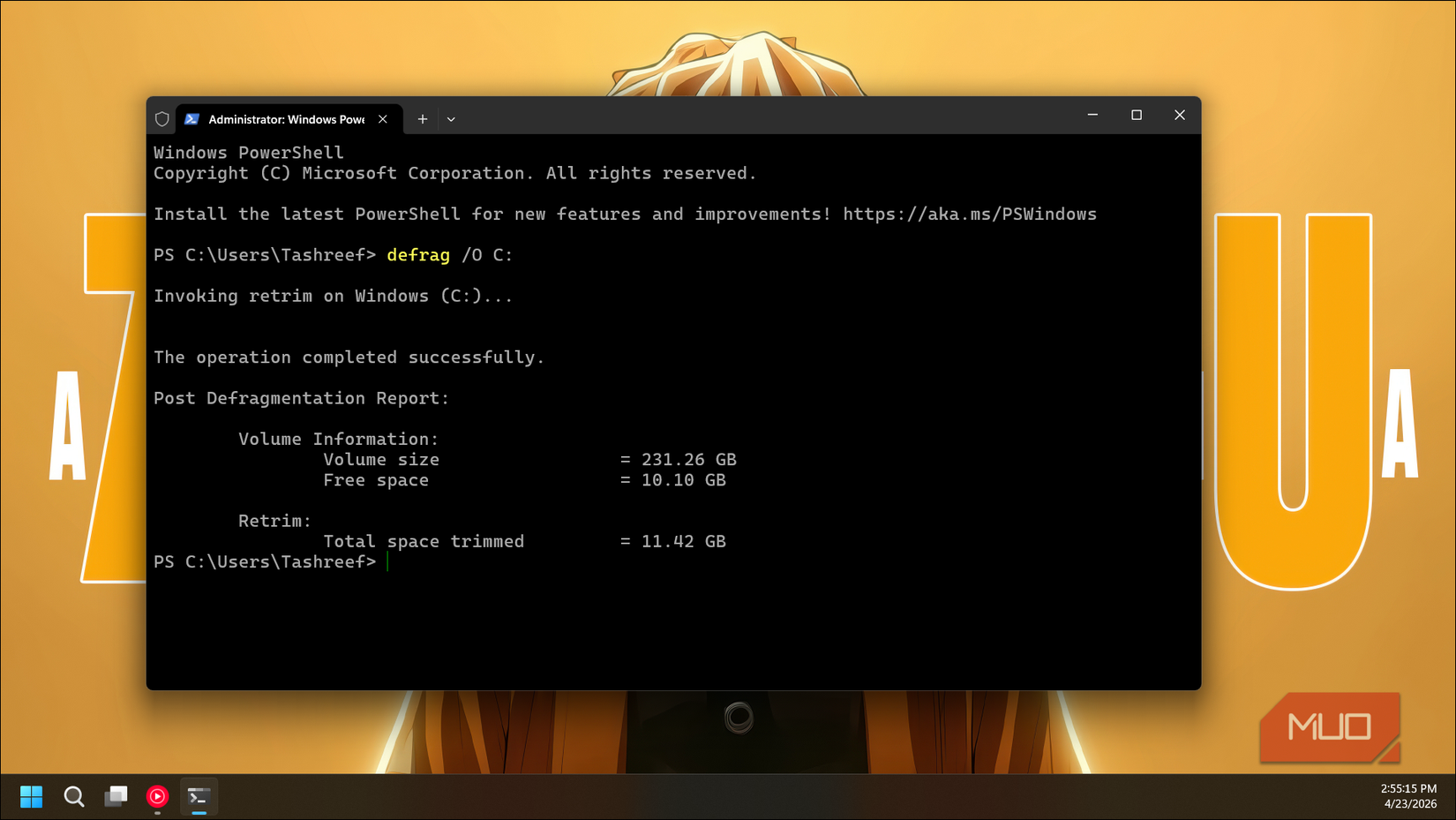
The scheduled job actually does a retrim, sending TRIM hints for every unused sector on the disk volume. Retrim is used because TRIM requests can get dropped if the queue fills, and this catches what got dropped.
Without the schedule, then, the TRIM would stop running after updates or driver changes, and the retrim can recover 20 to 30% of the writes speed on a neglected SSD. Disabling the feature makes that failure much more possible.
Windows does defragment SSDs, and it has a good reason
The once-a-month exception
defrag
 Credit: Tashreef Shareef / MakeUseOf
With the schedule on, Windows does in fact run a tracitional defrag, plus the retrim, on your SSD once per month, and changing the schedule's frequency won't change that cadence.
That's because the OS needs to manage file system bookkeeping, and that applies when volume snapshots (System Restore) are on. Heavy fragmentation slows snapshot copy-on=write, and NTFS can hit a maximum fragment count that will cause errors as the files get larger.
These extra writes are fairly negligible, though. Samsung rates the 1TB 990 Pro at 600 TB written, so even a monthly pass that rewrites 5 GB adds only 60G of writes per year, which is about 0.01% of the rating.
Checking it takes less than a minute
Make sure the schedule is on
Search defrag from your taskbar and open Defragment and Optimize Drives. Make sure your SSD's Media type says Solid state drive while you're there.
Under Scheduled optimization, choose Change settings and make sure the schedule is on at a weekly cadence.
To make sure TRIM is enabled, you can run fsutil behavior query DisableDeleteNotify in an admin terminal. A result of 0 means TRIM is on.
Want to retrim right now? Type Optimize-Volume -DriveLetter C -ReTrim -Verbose in PowerShell, or defrag C: /L in Command Prompt. Both run a retrim without messing with anything else; the /L switch is defrag's retrim flag.
Let Windows do the boring part
Third-party defraggers that ignore your drive type can do a full HDD-style defrag pass on your SSD, and that's not good for its health. Free space matters more than your optimizer schedule, too, since a nearly full SSD loses its SLC cache and slows writes to it.
Ultimately, the tweak originally meant to protect your SSD comes from the Windows 7-era of computing, around a detection issue that no longer exists.
Make sure you leave Optimize Drives on its weekly schedule and make sure you have enough free space on your drive instead.
 Auto
 2 weeks ago
3