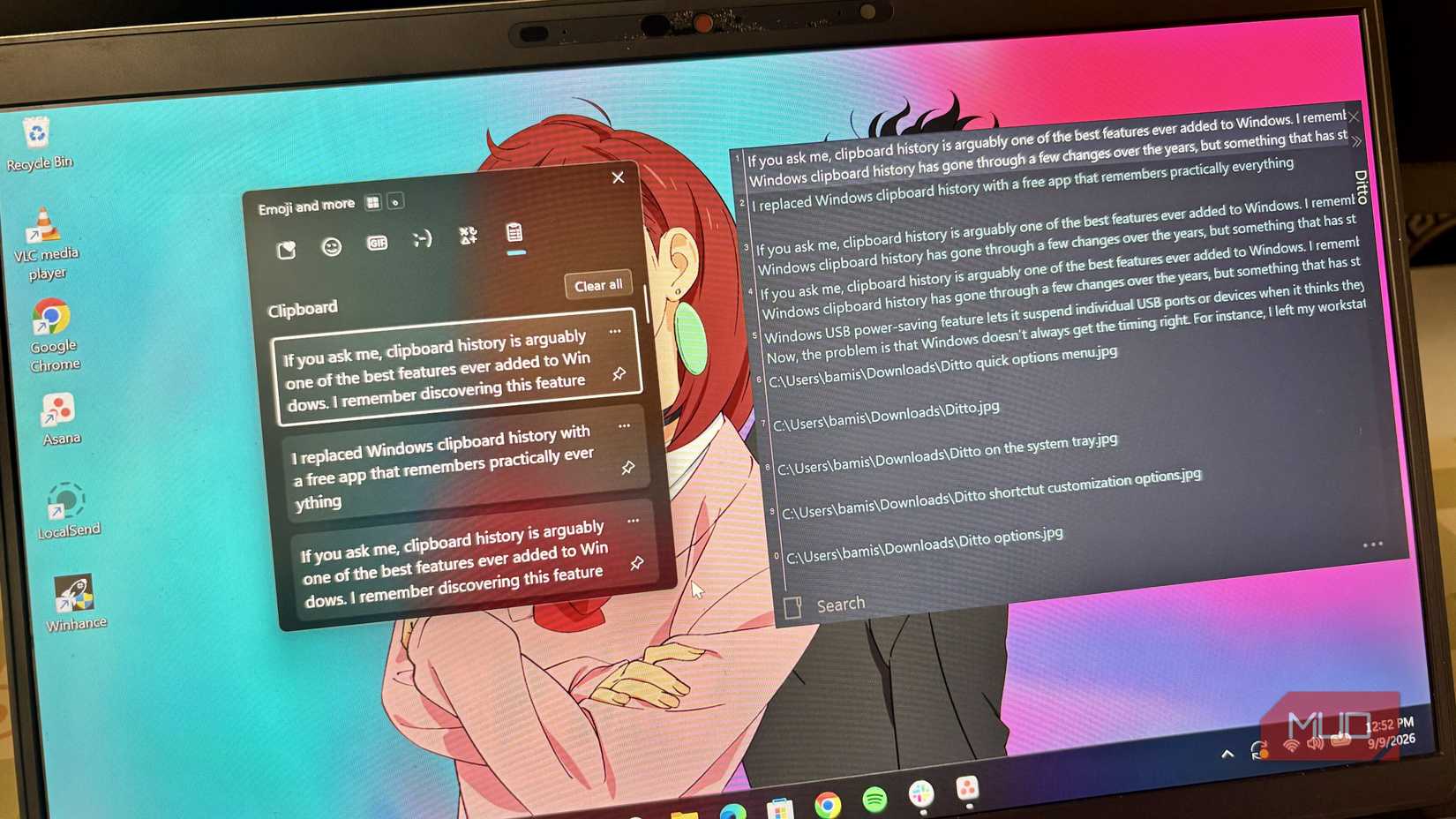
But once you start using it heavily, its little flaws become obvious. They certainly did it and that forced me to look for something better. Ditto is a free clipboard manager that fixes everything Windows gets wrong.
Windows clipboard is useful, but too basic
It has a ceiling, and you’ll hit it fast
The Windows clipboard is one of those features that’s a huge upgrade for most people. In fact, it’s something I feel everyone should enable while setting up a new PC. It works as advertised too. You can access it at any time with Win + V, pin useful items, and even sync copied items across your devices. For a lot of people, that’s more than enough.
But if you're a power user, there are just too many limitations to ignore. The biggest one is that it can only remember the last 25 items you copied. That may sound like a lot, but it’s actually not, especially if you have a few items pinned already. And once you go over that limit, Windows starts removing old entries to save new ones.
The other problem is that Windows also resets the clipboard every time you reboot. So if you restart to install an update or want to find copied items from yesterday, you’re sadly out of luck, unless you’ve pinned them.
The clipboard window is also rigid. You can’t resize it to see more content at a glance or search through entries. All these limitations mean that Windows clipboard is just not built for serious users.
Ditto is the clipboard Windows should have
There’s plenty to like
There’s no shortage of Windows clipboard apps out there, but if there’s one I can recommend without any doubt, it’s Ditto. That’s because I’ve been using it for a couple of years, and it has never let me down. It’s also completely free and open-source, which makes it an even easier recommendation.
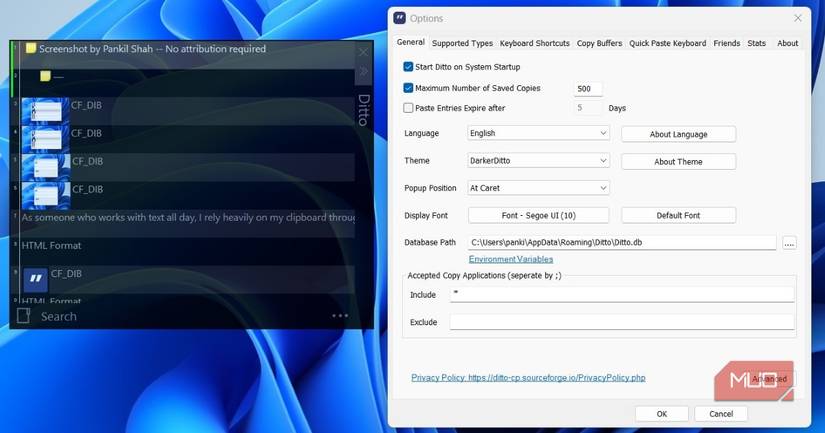
By default, Ditto saves 500 items, which is already plenty, but you can increase that limit from its settings. That means you can keep a clipboard history that stretches back weeks and even months.
You also don’t have to scroll through the list to find something, thanks to the built-in search tool. Type in a keyword and Ditto will pull up all the relevant entries. If you don’t want to use the search bar all the time, there’s even the option to pin specific entries.
Organization is another thing Ditto does better than Windows clipboard. For instance, you can group entries into separate folders if you don’t want a long list. That means you can have a folder for work and another for personal use to organize all your notes. You can also move entries up or down, and delete the ones you don’t need. Heck, Ditto even lets you add new entries and edit existing ones. It has a built-in notepad-like window where you can do all these things.
Pasting is flexible too. Right-click any item, head to Special Paste, and you’ll find quick options to convert text into uppercase, lowercase, sentence case, camel case, or strip it down to plain text entirely.
It’s customizable too
Shortcuts, themes, and all the little extras
Another thing that makes Ditto special is customization, which isn’t something I can say for the Windows clipboard. For instance, the default shortcut for opening the clipboard is Ctrl + `, but you can easily change that to any other key combination. It actually lets you set up to three different hotkeys for opening the clipboard window.
The clipboard window itself is also flexible. You can resize it like any other window and collapse it when you don’t need it. It also disappears automatically once it loses focus, much like the default clipboard.
Diving into the Options menu unlocks even more customization. You can change theme, font style, startup behavior, pop-up position, and a lot more from here.
My favorite Ditto feature, though, is customizable keyboard shortcuts. From here, you can set up hotkeys to paste the last 10 clipboard entries without even opening the clipboard. This is a huge time saver. I’ve set up Ditto to paste the first entry with Ctrl + Alt + 1, second with Ctrl + Alt + 2, and so on. This lets me paste my pinned entries and recently copied text and images directly.
Another handy option is to save the entire clipboard as a file. This is also handy if you’re switching PCs and want to take your clipboard history with you. The only catch with Ditto is that it can’t sync your clipboard history with other devices. As a workaround, though, you can still keep the Windows clipboard enabled and let it handle syncing.
 Auto
 2 weeks ago
3
 Credit: Yadullah Abidi / MakeUseOf