Auto
 2 weeks ago
2
The first time I opened the Lenovo Googlebook 15 at home, people in my house said "ooh" before I'd even signed in. After working with it for a while, I get the reaction: it's light, sharp, and easy to like.
Googlebook OS is Google's successor to ChromeOS, built around Android apps and Gemini AI, and Lenovo angles its Googlebook 15 as a natural partner for Android phone owners. There's a lot here to like, along with a few catches worth knowing before you spend $1,099 on one of your own.


7/10
Operating System Googlebook OS
CPU Intel Core Ultra 5 325 (8 cores: 4 P-cores + 4 LP E-cores, 12MB cache)
GPU Intel Graphics (integrated)
RAM 16GB
The Lenovo Googlebook 15 is a lightweight 15.3-inch laptop with a 2880x1800 OLED touchscreen that runs at 120Hz. It’s powered by an Intel Core Ultra 5 325 processor with 16GB of RAM and 512GB of storage, and it has two Thunderbolt 4 ports, one USB-A port, HDMI, and a headphone jack. It runs Googlebook OS, Google’s replacement for ChromeOS, which pairs Chrome with Android apps from the Play Store. The Cloud Grey chassis weighs 2.84 pounds and feels solid, and an LED strip on the lid, called the Glowbar, lights up when you wake the laptop, put it to sleep, or plug it in to charge.
Pros & Cons
Lenovo loaned us the Googlebook 15 for this review, but the company had no input in this article and did not see it before publishing.
Lenovo Googlebook 15 Pricing and Availability

Lenovo’s Googlebook 15 comes in one configuration at Best Buy, which is the one I tested. It has an Intel Core Ultra 5 325 with integrated Intel graphics, 16GB of RAM, and 512GB of storage for $1,049. Instead of a Copilot key, the Googlebook keyboard has an Action key, a Quick Insert key, and a dictation key for Rambler, and the NPU is rated at up to 47 TOPS for on-device AI. You also get 12 months of Google AI Pro. It comes in one color, Cloud Grey, a soft off-white that, with rounded edges and a slim clamshell, looks and feels like a premium laptop.
7/10
Operating System Googlebook OS
CPU Intel Core Ultra 5 325 (8 cores: 4 P-cores + 4 LP E-cores, 12MB cache)
GPU Intel Graphics (integrated)
RAM 16GB
Storage 512GB M.2 2242 SSD
Battery 70Wh
Display (Size, Resolution) 15.3-inch, 2880 x 1800
Camera 5MP with privacy shutter
Speakers 4 speakers (2x 2W woofers, 2x 2W tweeters), Dolby Atmos
Colors Cloud Grey
Memory 16GB LPDDR5X-7467 (soldered)
Ports 2x Thunderbolt 4, 1x USB-A (5Gbps), 1x HDMI 2.1, 1x 3.5mm headphone/mic jack
Network Wi-Fi 7 (802.11be 2x2)
Dimensions 13.42 x 9.29 x 0.63 inches (341 x 236 x 15.95 mm)
Weight 2.84 lbs (1.29 kg)
Form Clamshell
Price $1,099
Brand Lenovo
Model Googlebook 15
Adaptor and Battery 65W USB-C adapter, 70Wh battery
Power 65W USB-C; Rapid Charge Express (13.5Wh in 15 minutes)
Finish Silk-touch, anti-fingerprint coating
Keyboard Backlit, spill-resistant, 1.3mm key travel
Display type OLED touchscreen, glossy, 120Hz, 500 nits, 100% DCI-P3, 16:10
Audio Quad speakers with Dolby Atmos, dual-microphone array
Webcam 5MP, fixed focus, privacy shutter
Connectivity Wi-Fi 7, Bluetooth 6.0
Size 15.3 inches
Box contents Laptop, 65W USB-C adapter
Starting Price $1,099
Security Google face unlock via webcam, privacy shutter
Lenovo nailed the hardware
Light, sturdy, and seriously good-looking

I noticed the lightness of this Googlebook right away, as I've been toting around a MacBook Air 15-inch M5 for a while now. The Googlebook 15 feels light and airy to lift, but also high-end, what with that soft rubberized finish and rigid chassis, made of what Lenovo says is a lightweight magnesium-aluminum alloy on the top and a polycarbonate mixed with 20% carbon fiber on the bottom.
It's also tested to MIL-810H specs, meaning it is designed to withstand everyday environmental hazards and physical stresses like drops, shocks, vibrations, extreme temperatures, humidity, and dust, making it a solid choice for your daily commute, at least.
The touchpad didn't meet my expectations based on years of MacBook use.
The keyboard is fantastic, too, making long writing sessions a breeze. Each key has a short 1.3mm of travel, making it very usable. The touchpad seems great at first, with a large surface area, haptic responsiveness, and a smooth feel. Unfortunately, the way I tend to use trackpads ends up with my right palm resting a little on the far right of the pad.
Whenever it did, the haptic clicks wouldn't happen and I'd end up getting furstrated at what felt like a lack of responsiveness. If I lift my hand up to click, it works just fine, but wow, was that a muscle-memory challenge. I don't know how Apple does it, but this touchpad didn't meet my expectations based on years of MacBook use.
I even went looking for some software tuning, but there weren't any to be found in Settings > Device and accessories > Touchpad. I ended up having to use tap to click (and I really don't like tap to click).
I went to swipe off some dust on the screen one day and discovered that the gorgeous screen is also a touchscreen. But why?
This isn't a 2-in-1 like that Yoga 7a I tested a while back, so the touchscreen seems a little gratuitous. It could be that, since the Googlebook is running Android, having touch capabilities might help some apps work better. The hinge doesn't wobble when I'm touching the screen, so Lenovo at least made it useful if you want to tap the screen.

The Glowbar is a thin strip on the top outside of the cover. It shows battery level in color when you have it plugged in, and it cycles blue and purple when you engage Gemini's voice chat mode. It also shows a rainbow when you close to sleep or open to wake. It's useful when charging, for sure, but since it faces away from me when I'm using the laptop, it doesn't have much more functional purpose than decoration.
Charging & Battery Levels
The best reason to grab one of these, though, is the stunning OLED screen. It's bright, sharp, and glossy which makes it perfect for indoor use, watching videos, playing (mobile) games, and the like. It can get a little glare-prone outside in bright sunlight, but it's still pretty usable at higher brightness levels. The 120Hz refresh keeps onscreen elements feeling snappy, too.
The speakers are pretty good, too, with decent reproduction of Dolby Atmos content, though they're still small and won't replace a decent Bluetooth speaker. Still, they fill a small room with enough quality that it's good they're there.
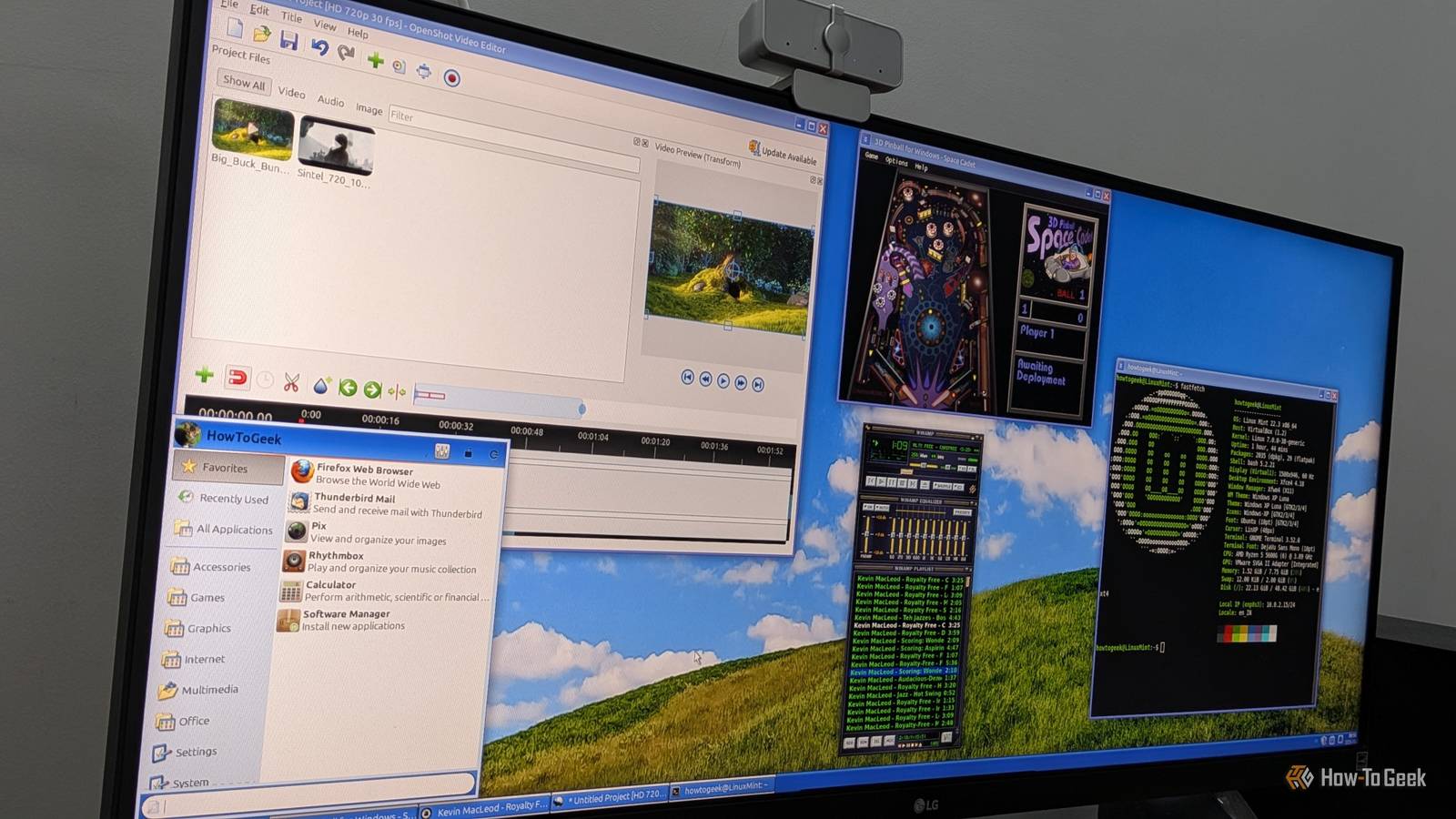
Lenovo's Googlebook 15 works pretty well on my widescreen monitor, with one little quirk.

I hooked the Googlebook up to my ultra widescreen monitor, and, after a little initial fiddly where I had to keep the clamshell open and then close it to get widescreen resolution, it works pretty well. Widgets and the icons to the right of the screen end up sort of in the middle, though, as if the laptop can't push them out beyond their original positions on the built-in screen. There are no settings I could find, either, to make that happen. It did work via HDMI and Thunderbolt 4, too, so that's a plus.
Finally, most of the Google Play apps on Googlebook work like phone apps. The sidebars in Asana and Slack, for example, are missing from these "native" (read, mobile) apps. I ended up using the web versions of the apps instead, as they included the important bits that I've grown accustomed to on macOS and Windows, for example.
Chrome itself has a few quirks, like when I went to type a few letters to select an item from a dropdown list in our CMS; I do this several times a day, and having to scroll (or even swipe) to the selection gets tedious.
Gemini is everywhere, but most of it isn't new
Magic Pointer is clever and rarely necessary
When enabled, you can wiggle the cursor to activate Gemini, which can then interact with whatever you selected via wiggling. I had to enable it, and then sign in to my Google account, but then i could identify images from the web, merge them into AI-generated versions, and even get suggested replies for Slack conversations (which were pretty vague and generic, to be honest).
The question becomes more "why bother" than "what can you do with it?" Google Lens can already identify images, and Gemini can already do all the rest of it. It's not even going to stay exclusive, either, as a webpage version of magic cursor is coming to Chrome on Windows and Mac.
Rambler, however, a dictation feature that debuted on the Pixel 11, is fairly useful when you want to just, well, ramble on at your computer and have Gemini clean it up for distribution. It worked in any text field I could throw at it, including Slack and Gmail. I just hit Alt-D on the keyboard to start it, and either Alt-D or Return to stop it, and I had dictation with all the "ums" and "ahs" removed.
I also tried Create My Widget, which took a few minutes to find, but with a right-click on the Home Screen (or, as I still call it, the Desktop), I found the Browse Widgets command, and then hit the Create (still in beta) button. Was it life-altering? No, but adding a quick countdown timer to an upcoming event and then dropping it onto the Home screen could be useful.
The phone features work, but they're easy to miss
Both my phones connected; I just didn't notice

There's a dedicated icon on the Googlebook Dock that will set you up to connect your phone (or phones, in my case) to your Googlebook. It brought up a QR code for me to scan with each of my handsets, the Pixel 9 and Samsung's Z Fold 8. It took a while for me to really understand what was happening, as the code merely took me to the Settings on each phone to make sure all the toggles were set to connect the phones.
Then I spent a while trying to see how I could cast my phone screen to the Googlebook; neither one took right away. After testing the other options, like Notification Sync, Continue On, and Quick Access, I was then able to see the apps from my Pixel in that dock item.
I haven't gotten any notifications while using the Googlebook, but all the toggles are on; I'm assuming that will work as the notifications come in. Continue On works like macOS's continuity, in that you can see an icon from an app you have on the phone in the dock on the Googlebook. Click it, and you're using the window or app from the phone on the laptop. Quick Access allows you to see files and such from your phone right on your Googlebook; it's a great way to grab stuff from your phone instead of using Dropbox or similar.
Once my Pixel showed up in the dock icon on the Googlebook, I could start any app from my phone right there on the laptop; it all worked well and makes sense if you have apps on the phone you don't on the Googlebook. Most of my apps came over from my Android phones during setup, so this made less of an impact for me. Still, it seems a useful feature.
Benchmarks and battery life
Fast enough for a browser-first laptop
|
Geekbench 7 CPU (3-run average) |
2,296 single / 8,578 multi |
|
Geekbench 7 GPU |
13,262 |
|
Speedometer 3.1 |
15 on battery / 24.1 (±1.6) plugged in |
|
3DMark Solar Bay / Wild Life Extreme |
4,837 / 1,796 |
|
Cross Platform Disk Test, sequential read / write |
758 / 938 MB/s |
|
Cross Platform Disk Test, random 4K read / write |
41 / 16 MB/s |
A few of our regular benchmarking apps are unavailable on Android, so instead of CrystalDiskMark, I used Cross Platform Disk Test, which measures sequential and random 4K read and writes.
Battery life is great; Lenovo claims it charges 13.5Wh in 15 minutes using the included 65W charger. I used it all day on a single battery charge for web-based writing and editing, and it lasted my whole work period. It charged up quickly and I easily used it charged up soon after.
The laptop on the whole feels responsive and quick, and when it was connected to my widescreen monitor, I sometimes forgot it was a Googlebook. It's not going to play any high-end games or render tons of video quickly, but that's not why you buy a Googlebook. For most everyday tasks as a student, writer, editor, household manager, this has what it takes and comes in at a decent price.
Should you buy the Lenovo Googlebook 15?

This hardware earns its $1,099, and the software comes with a few catches. The $699 MacBook Neo is the obvious alternative: It's $400 cheaper, but with 8GB RAM and a smaller 60Hz LCD. If you're deep into Apple's ecosystem, that's probably the way to go. If you're an Android stan, the Googlebook 15 is likely the one to get.
You should buy the Lenovo Googlebook 15 if:
You mostly work in Chrome and Google's web apps You want a big OLED and a great keyboard under 3 lbs You want your Android phone's files and tabs on a bigger screenYou shouldn't buy the Lenovo Googlebook 15 if:
You rely on desktop-class apps You rest your palm on the touchpad You work on an ultrawide monitor You want the most laptop for the moneyOverall, there's a lot to like about the Lenovo Googlebook 15. It's light, easy on the eyes, and fits neatly into the Android ecosystem once your phone is paired. There are catches: Chrome slows down noticeably on battery, and Play Store apps still look and act like phone apps on a 15-inch screen. But if you live in Chrome and Google's apps, don't need top-tier power, and want a laptop you can carry all day without thinking about it, the Lenovo Googlebook 15 is the one for you.