Auto
 1 week ago
2

Published Oct 21, 2026, 11:45 AM EDT
Brandon has been involved in tech journalism since the year 2000 and was part of the OG team of XDA and Pocketnow. He's currently a staff writer for MakeUseOf, covering mobile and consumer tech. Brandon likes to help people take full advantage of their technology.
He lives outside of Philadelphia, PA, with his wife and three kids. When he's not writing, Brandon plays drums and enjoys listening to music.
He's a graduate of the Villanova School of Business where he got a bachelors degree in finance.
Gmail's Undo Send button has been a lifesaver for me over the years, as it lets me stop the sending of a message that perhaps I would regret sending, or it lets me revise the message before it leaves my inbox (and is out of my hands forever).
But I went years thinking the 5-second cancellation window was static, when in fact Gmail lets you extend this window significantly, which can be a lifesaver. Not only that, but there are other Gmail defaults that deal with those annoying Nudges (you know, the "Sent 5 days ago. Follow up?" pings), plus the fact that Gmail is set up to promote Google's products like Meet when it just takes up space in your inbox.
Here's a look at the Gmail settings I wish I had changed years ago, including the expansion of the Undo Send window, which might just save your job or your relationship.
Expand the Undo Send cancellation window
The 5-second default is not nearly enough
 Credit: Brandon / MUO
The Undo Send feature in Gmail can be a lifesaver if you need to stop an email from sending (many jobs and relationships probably have been saved since Google added this button). Obviously, "undo send" doesn't allow you to recall a message after it's been sent — it just delays the actual sending of the message by a predetermined amount of time, so that if you change your mind, you can stop the message from being sent.
But the default five-second duration window is far too short and often doesn't give you enough time to prevent a message from sending if you change your mind. You can change the duration to 5, 10, 20, or 30 seconds, and I prefer the maximum 30-second window. Even if you close the Gmail tab, the message will still be sent after the preset number of seconds elapses.
To increase the email cancellation period, click the gear icon in the upper right of Gmail > See all settings > scroll to Undo Send > Change the cancellation period.
Note that these changes only apply to Gmail on desktop (but it'll sync across multiple browsers), and it does not apply to Gmail on your phone. On mobile, the Gmail app has a hard-coded email cancellation window of around 5 seconds that you can't change.
This next setting will turn off the annoying Nudges Gmail adds to your inbox.
Turn off Nudges
You don't need to be reminded to reply to your boss
 Credit: Brandon / MUO
Nudges are a feature that annoyingly does two things: it suggests emails you might have forgotten to respond to, and it suggests emails you might want to follow up on. Perhaps you're someone who forgets to follow up on or reply to emails, and you like having this turned on, but not me. I often don't reply to certain emails right away for a reason, and I don't need Gmail to nag me with the typical "Received 3 days ago. Reply?" or "Sent 5 days ago. Follow up?"
To turn off nudges, just go back to All Settings in your Gmail account and scroll down to Nudges and untick "Suggest emails to reply to" and "Suggest emails to follow up on."
Show more conversations per page
Spend less time searching
 Credit: Brandon / MUO
I have my inbox neatly organized with read and unread states. Maybe you use tags or stars, but if you're a "Type-A-emailer" like me, your inbox is pretty well-filtered. One way to have a better handle on your inbox is to be able to see more messages at one glance, but by default, Gmail only shows you 50 conversations per page, and that's not enough to really see your inbox.
To see more conversations in your inbox (I like setting it to a maximum of 100), go to All Settings in your Gmail, then go to Maximum page size and change the number of conversations per page.
This next change will clean up the tabs along the left side of your inbox.
Disable Google Chat and Meet
You don't need them in your inbox
 Credit: Brandon / MUO
You might have done this already, but if not, disabling Google Chat and Meet from Gmail removes those annoying tabs on the side that just add visual clutter to your inbox. A relic from the Google Hangouts days and now a part of Meet, Google Chat in particular is irrelevant for most people. And while the Meet tab gives you a quick way to start a conference — you don't need it in your inbox at all times.
To turn off these tabs, go back to See all settings in Gmail, but then click on the Chat and Meet tab along the top, and turn off Google Chat and hide Meet. You'll have to reload Gmail for your changes to take effect.
But sometimes the defaults aren't ideal
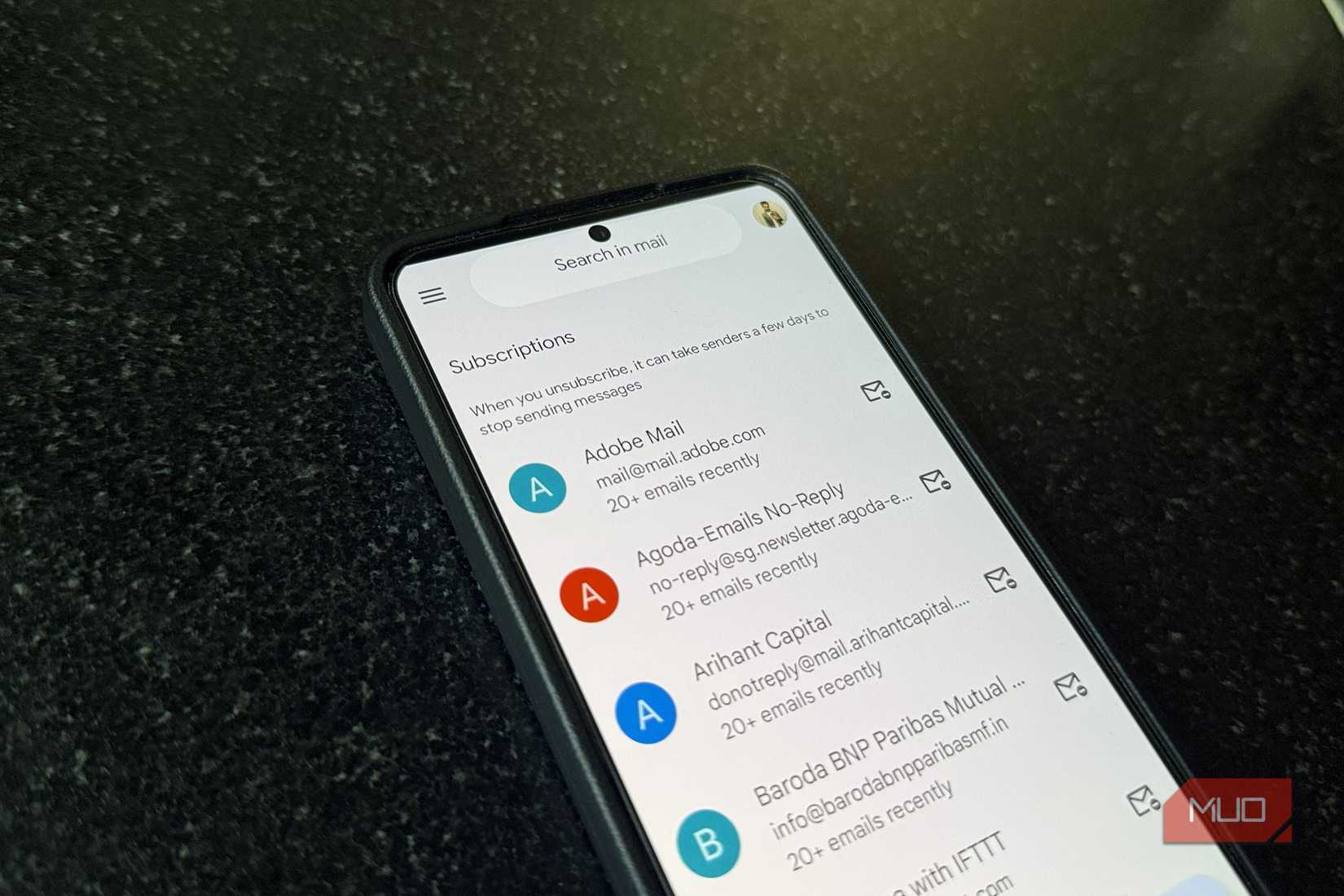 Credit: Pankil Shah / MakeUseOf
Gmail is a great tool, and it feels like most of the world uses it every day. But when it comes to certain settings, sometimes the defaults don't cut it, and it's important to tweak the settings to work the way you do. By expanding the Undo Send cancellation window, especially, I was able to bring more calm to my inbox for situations where I have second thoughts about sending a particular message.