Auto
 3 weeks ago
3

Published Oct 12, 2026, 11:46 AM EDT
Tashreef's fascination with consumer technology began in the school library when he stumbled upon a tech magazine, CHIP, which ultimately inspired him to pursue a degree in Computer Science. Since 2012, Tashreef has professionally authored over a thousand how-to articles, contributing to Windows Report and How-To Geek. He currently focuses on Microsoft Windows content at MakeUseOf, which he has been using since 2007.
With hands-on experience building websites and technology blogs, he brings practical developer insights to his technical writing. You can view his complete work portfolio at itashreef.com.
You might also stumble upon his short how-to video explainers, simplifying complex topics. Beyond writing, Tashreef enjoys creating short explainer videos, gaming, and exploring animated shows.
Think about a PC that's not broken enough to do an RMA, but you know something is off. The computer works, but the GPU benchmarks don't match the reviews, or your Ethernet drops once a day for no reason, or your high refresh rate gaming monitor feels a little sluggish.
Then you start digging, find a setting buried deep inside the OS or in the BIOS, and everything clicks. Over the years, I've found at least five settings only after my hardware started acting weird.
ReBAR (Resizable BAR)
A BIOS setting that unlocks your GPU's full memory access
 Credit: Shaheer Khan/MUO
My B580 was working fine until the system suddenly started to stutter. I couldn't even play YouTube videos without consistent lag. The problem seemed to have triggered after a driver update—good hint, except it doesn't tell you much.
I fired up CPU-Z to check the system state, and it showed that Resizable BAR (ReBAR) was disabled. To turn it back on, I had to dig into my BIOS and eventually turn off Compatibility Support Module (CSM), and that fixed the problem.
So what is ReBAR? Resizable Base Address Register is a PCI Express feature that lets your CPU access all of your GPU's VRAM at once. Without it, the CPU can only see VRAM through a small 256MB window. That means every time it needs to send textures or shaders to the GPU, it has to do it in 256MB chunks and keep remapping that window. ReBAR removes this restriction so the CPU can address the entire VRAM pool directly and write exactly where it needs to. The result is better GPU performance, with up to 10-15% higher FPS in some games.
Energy Efficient Ethernet (EEE)
A power-saving feature that can tank your wired connection
This may be a more common problem, but the solution was not so common. I use Ethernet for a stable connection wherever possible, and my home is the best place to have a wired setup, except that the wired connection too can be unreliable sometimes.
My Ethernet connection was having what is essentially called link flapping, where the connection keeps disconnecting and reconnecting because the Ethernet port fails to maintain a stable link. Looking for a solution led me to Energy Efficient Ethernet (EEE), a term I wasn't really aware of. On the bright side, of all the Ethernet problems I've encountered, this was the easiest to fix. On Windows, the setting is in the network adapter's driver properties in Device Manager:
Right-click Start and open Device Manager. Expand Network adapters. Right-click your Ethernet controller (mine was Intel(R) Ethernet Controller I226-V) and choose Properties. Go to the Advanced tab. In the Properties list, select Energy Efficient Ethernet. Set Value to Disabled (or Off), then click OK.So what does EEE do, and why does it cause link flapping? EEE is a power-saving feature that puts your wired Ethernet link into a nap when it's idle. Instead of constantly transmitting signals, when idle, one side tells the other that it's entering Low Power Idle (LPI) and turns off the transmitter. It still sends short refresh signals periodically to keep the link alive, and when real data arrives, it sends a wake signal.
The issue comes when two different vendors' hardware has to carry out this sleep-wake cycle thousands of times an hour. If the card doesn't wake cleanly, mismatched timing and buggy firmware can cause the link to drop. The fix is to turn off EEE entirely, and the trade-off is minimal. You get a stable connection, and it might cost you a fraction more in electricity.
Dynamic Refresh Rate
Why your high refresh rate display keeps resetting to 60Hz
 Credit: Yadullah Abidi / MakeUseOf
Imagine buying a gaming laptop with a 144Hz display, and it keeps resetting to 60Hz. That's exactly what happened with mine. Every time I unplugged the laptop from the power source, the screen flickered with a brief black screen and then came back. That blink was the telltale sign of a refresh rate change.
When I checked the display settings, the refresh rate had dropped to 60Hz with the laptop unplugged and only went back to 144Hz when I plugged it back in. I tried changing the power plan, but that didn't help. What eventually fixed it was turning off Dynamic Refresh Rate in the display settings. You can find it by going into Settings > Display > Advanced display and turn off Dynamic Refresh Rate.
Dynamic Refresh Rate is a Windows 11 feature available only for compatible displays. Instead of keeping a high refresh rate screen locked at 120Hz, 144Hz, or 165Hz all the time, it holds a 60Hz baseline and raises the rate only when the active program benefits from extra smoothness, like games, scrolling, and pen input. This helps save battery life on laptops. Ideally, the switching should be invisible, but the feature can conflict with manufacturer display apps that have their own dynamic refresh rate settings, causing the flicker and black screen I was seeing.
Selecting the wrong GPU
When Windows uses your integrated graphics instead of the dedicated card

Did you know your GPU performance can differ based on which app you're using? Some apps like Adobe's Painter tend to pick a GPU based on which monitor the app window is open on. If the app is open on my monitor that's connected to the motherboard's video output, which uses the integrated GPU, then Windows holds onto the integrated GPU even if a dedicated GPU is available.
In my case, the app was using the integrated AMD Radeon GPU instead of the Nvidia RTX I paid a premium for. If you're noticing a slow viewport, laggy brushes, or overall poor graphics performance, make sure the monitor is connected to your GPU's port, or open the app on the correct display. This is easy to miss on a multi-monitor setup.
To fix this, you have a few options. You can change the cable configuration so the monitor plugs into the graphics card instead of the motherboard. You can set the GPU preference in Windows Graphics Settings (Settings > Display > Graphics) to High performance for the app in question. Or you can manually assign the preferred GPU in the Nvidia Control Panel.
XMP/EXPO not enabled (BIOS)
Your RAM might be running at 2014-era speeds
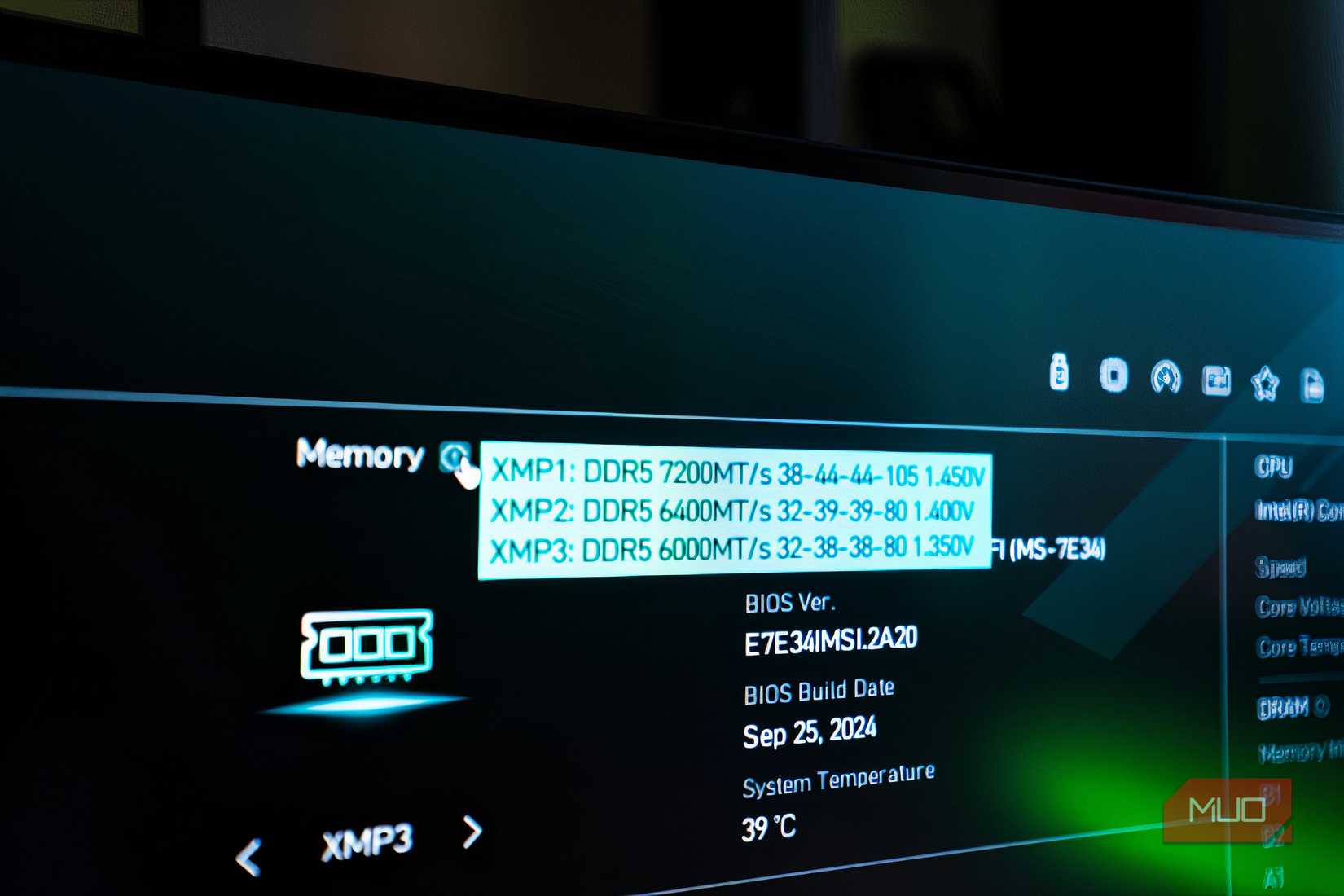
This may be more of a beginner mistake, but it's one that cost me real performance. Imagine buying a DDR5-6000 kit, designed to run at 6000 MT/s, and all you get is 4800 MT/s at best. While the possibility of being sold fake memory exists, the reason your speed doesn't match the advertised spec is most likely because of default settings.
While looking at solutions, I learned that the EXPO (AMD's memory profile) was disabled in the BIOS. Once enabled, the stick ran at the full advertised speed. If you're on Intel, look for a setting labeled XMP instead.
So what are XMP and EXPO? Your memory stick stores two sets of speed profiles out of the box. The first is the JEDEC standard, which is a universally safe speed that every motherboard and CPU will accept without issues. With JEDEC, DDR5 memory runs at 4800 MT/s, and DDR4 runs at 2133 MT/s. The second profile is XMP (Intel) or EXPO (AMD), which is the speed printed on the box and tested by the manufacturer. By default, the motherboard sticks to the JEDEC baseline as the safest option. XMP and EXPO technically count as overclocking even though your memory supports those speeds out of the box. The motherboard doesn't try to play it safe, and you end up with roughly 25% of unused memory bandwidth.
These settings exist for a reason
These settings exist because Windows and hardware vendors often prioritize stability and compatibility over peak performance. That's a reasonable trade-off for most people. But it also means you might be losing frames because ReBAR is off, underusing your memory because XMP isn't enabled, or watching an app crawl because the system picked the integrated GPU.
What's worse, none of these scream broken hardware, which is exactly why they're so easy to miss. The good news is that once you know where to look, every fix on this list takes less than a minute.